Back to Maintenance Manager for Manufacturing Main Menu
View and Manage Work Orders
The Work Orders feature allows Administrators and Technicians to view, track, and manage work orders. Work orders can be viewed in Workflow, List, or Calendar view. Filtering options help you locate, update, and manage work orders efficiently.
List View
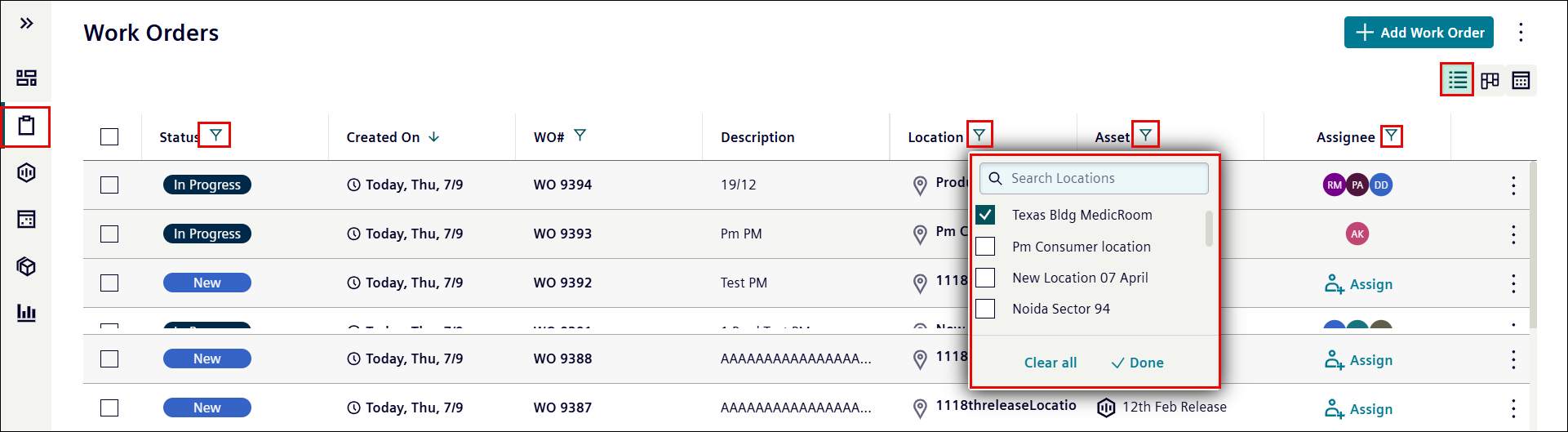
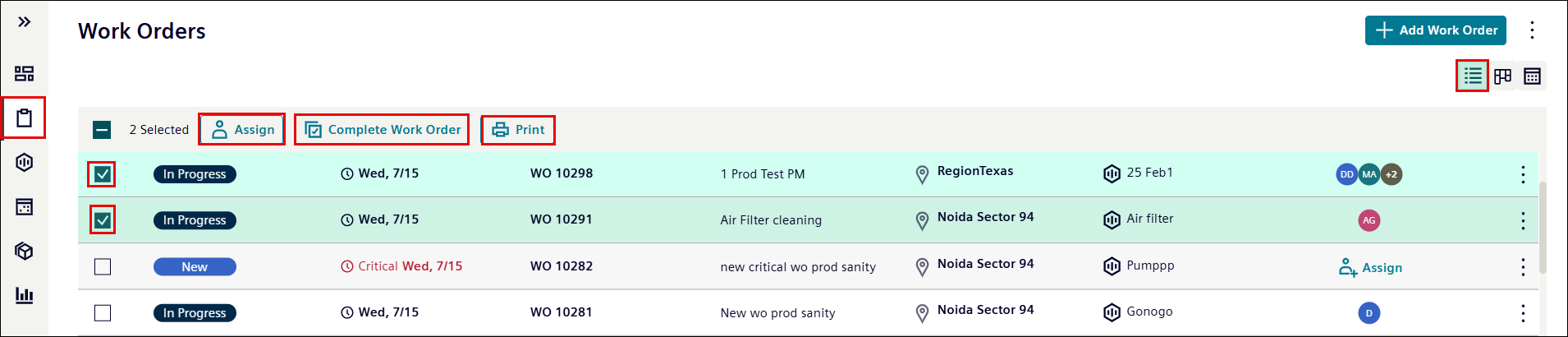
The List view  , accessible at the top right, displays work orders in a list format with filter options for Status, Locations, and Assignees to refine the work orders. You can select multiple work orders to assign or complete at once.
Key features:
-
Click Assign to directly assign a technician.

-
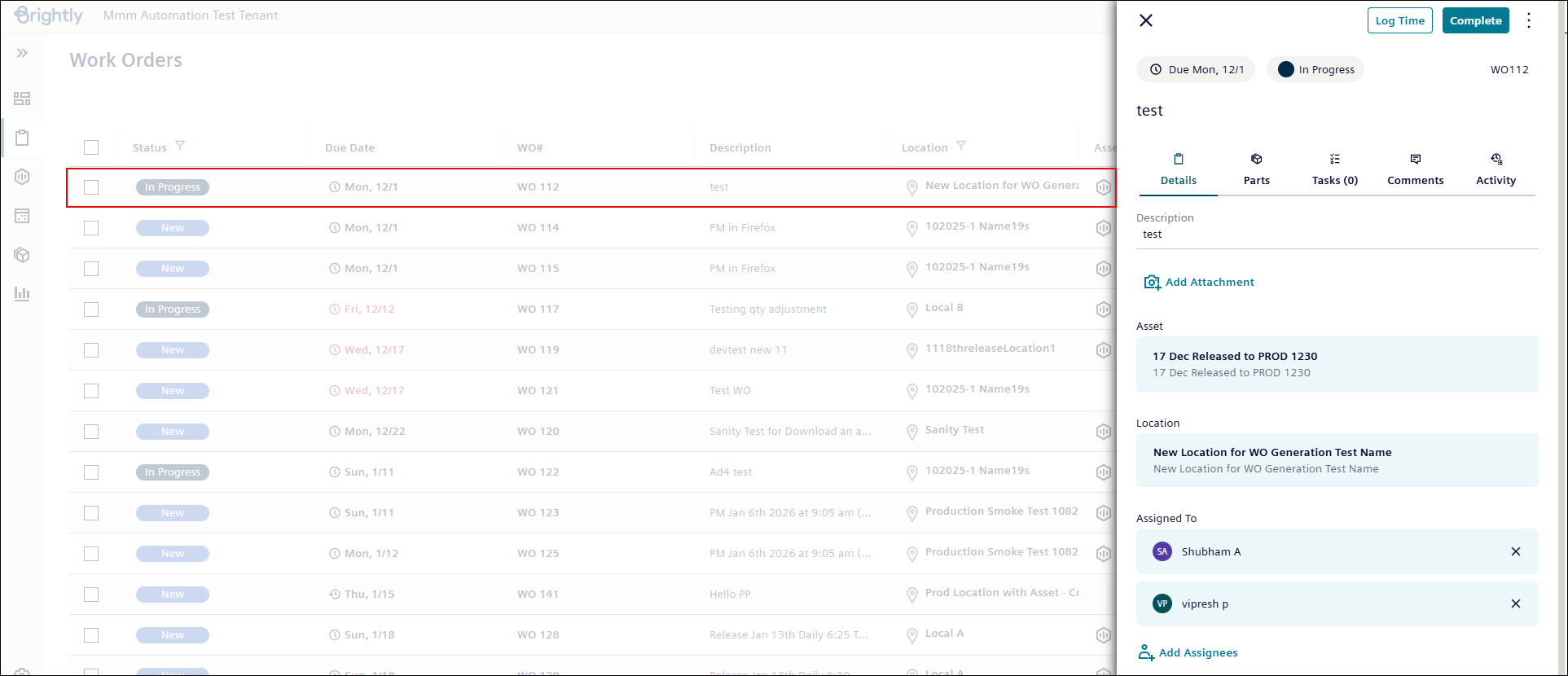
Select a work order to open a work order panel, where you can view and update information as required.
-
Select multiple work orders to Assign or Complete them at once.
Workflow View
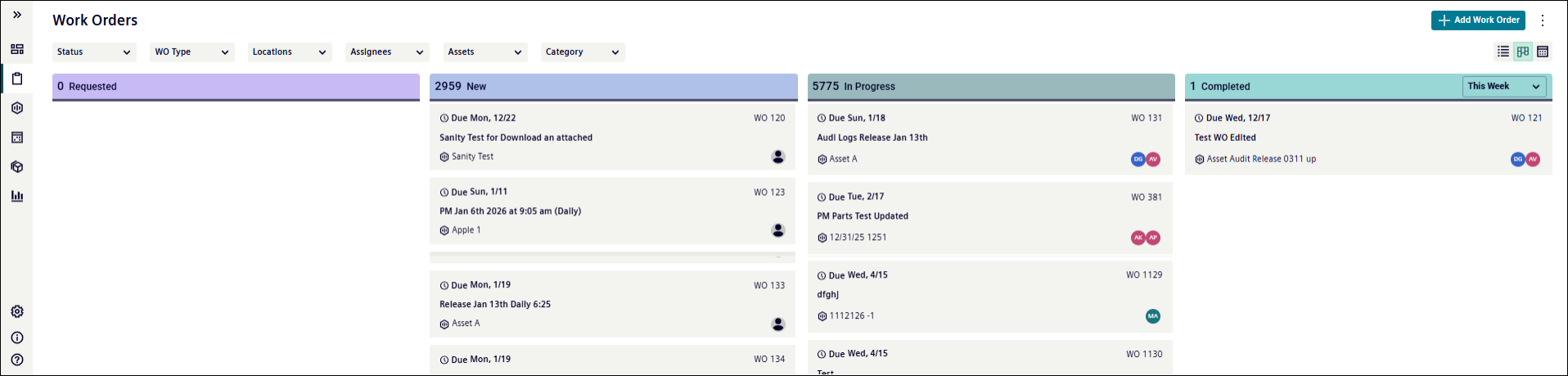
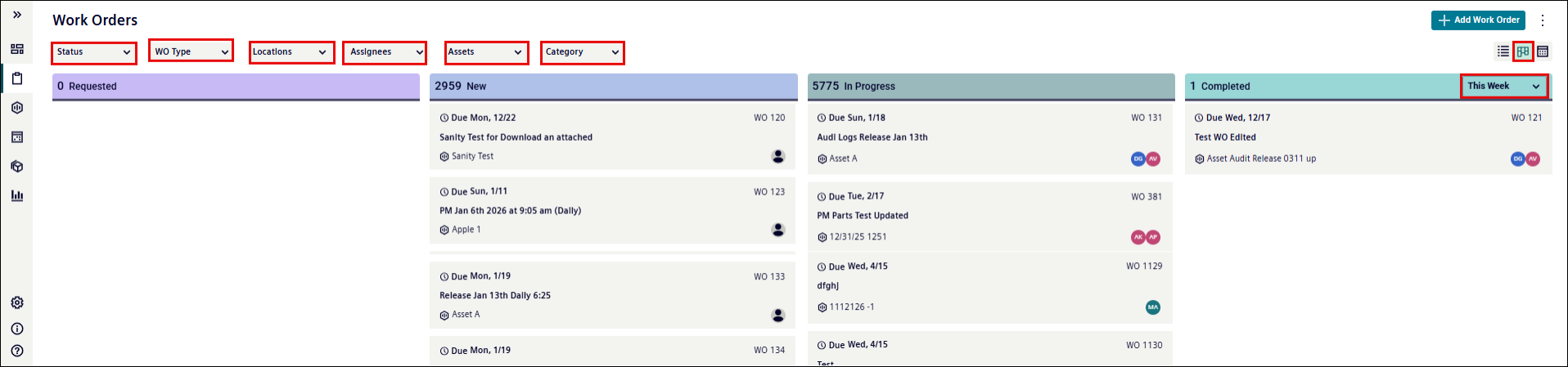
The Workflow view  , available alongside the List view, organizes work orders into columns labelled Requested, New, In Progress, and Completed. Dropdown filters for Status, Locations, Assignees, Assets, and Category above the columns allow you to refine the displayed work orders.
Key features:
-
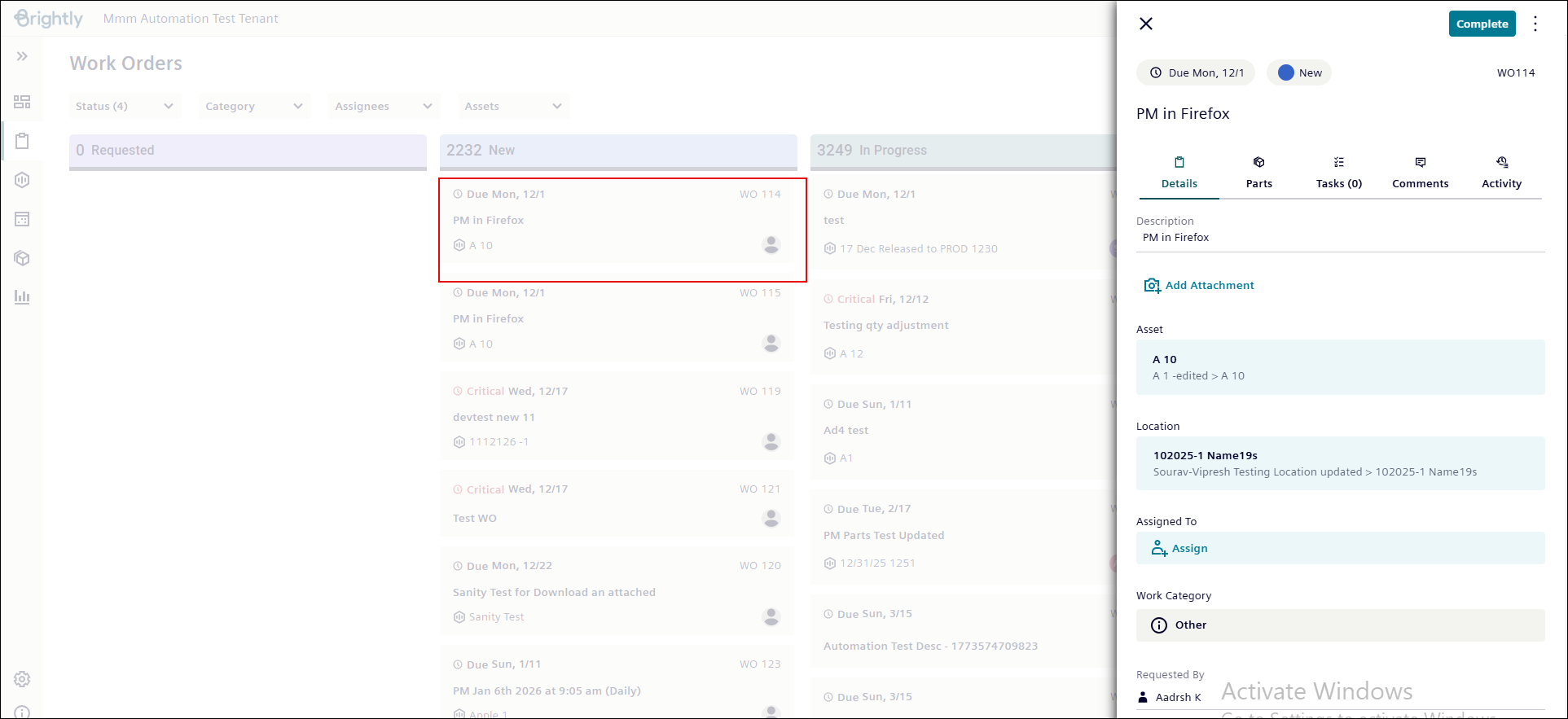
Select a work order to open a work order panel, where you can view and update information as required.
-
Drag and drop work orders between columns to update their status.
-
Segregate work orders into columns based on status.
-
Display the total number of work orders in each column.
Calendar View
The Calendar View alongside the workflow view, displays work orders in a calendar format with similar filter options available in other two views. In Calendar view, you can further switch between Day, Week, and Month views. Work orders are labelled by status using color codes:
-
Red label: Emergency Work Order.
-
Orange Label: New Work Order.
-
Blue label: In Progress Work Order.

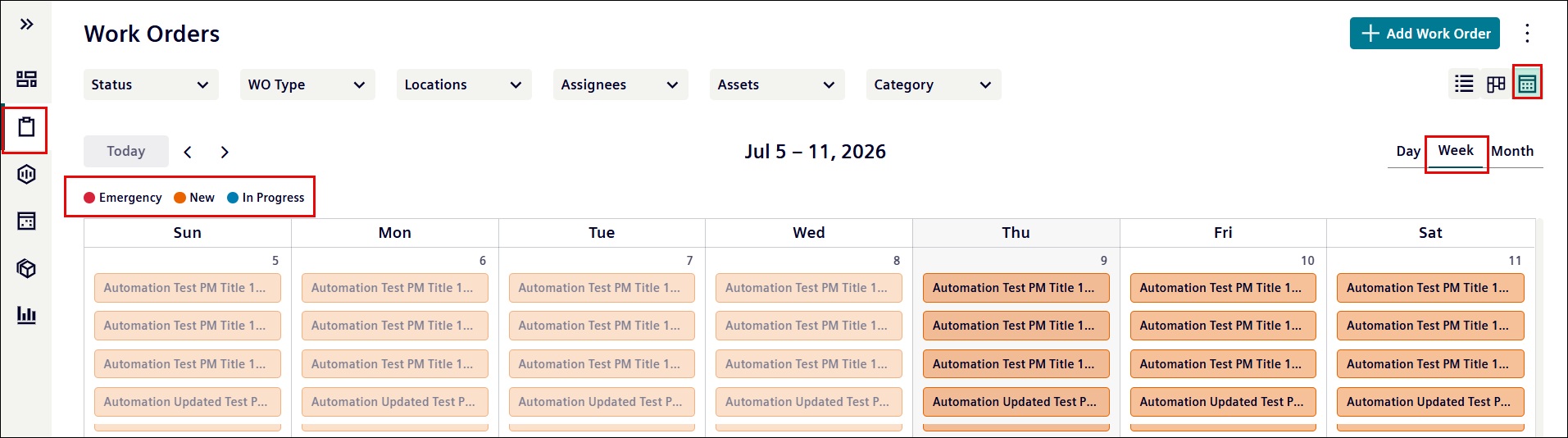
NOTE Calendar view does not display Completed and Requested work orders, unlike the Workflow and List views.
Key features:
-
Work Orders are organized by Status order:
-
Emergency
-
New
-
In Progress.
-
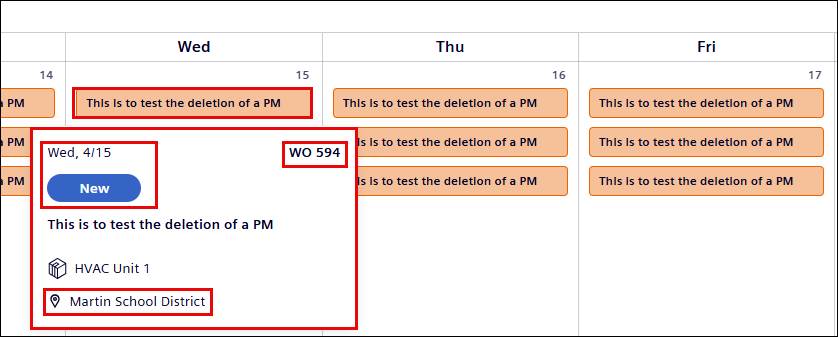
Hover over a work order to see high level details, such as Work order ID, Due date, Location, and Status. Click that work order to open it in the Work Order panel.
-
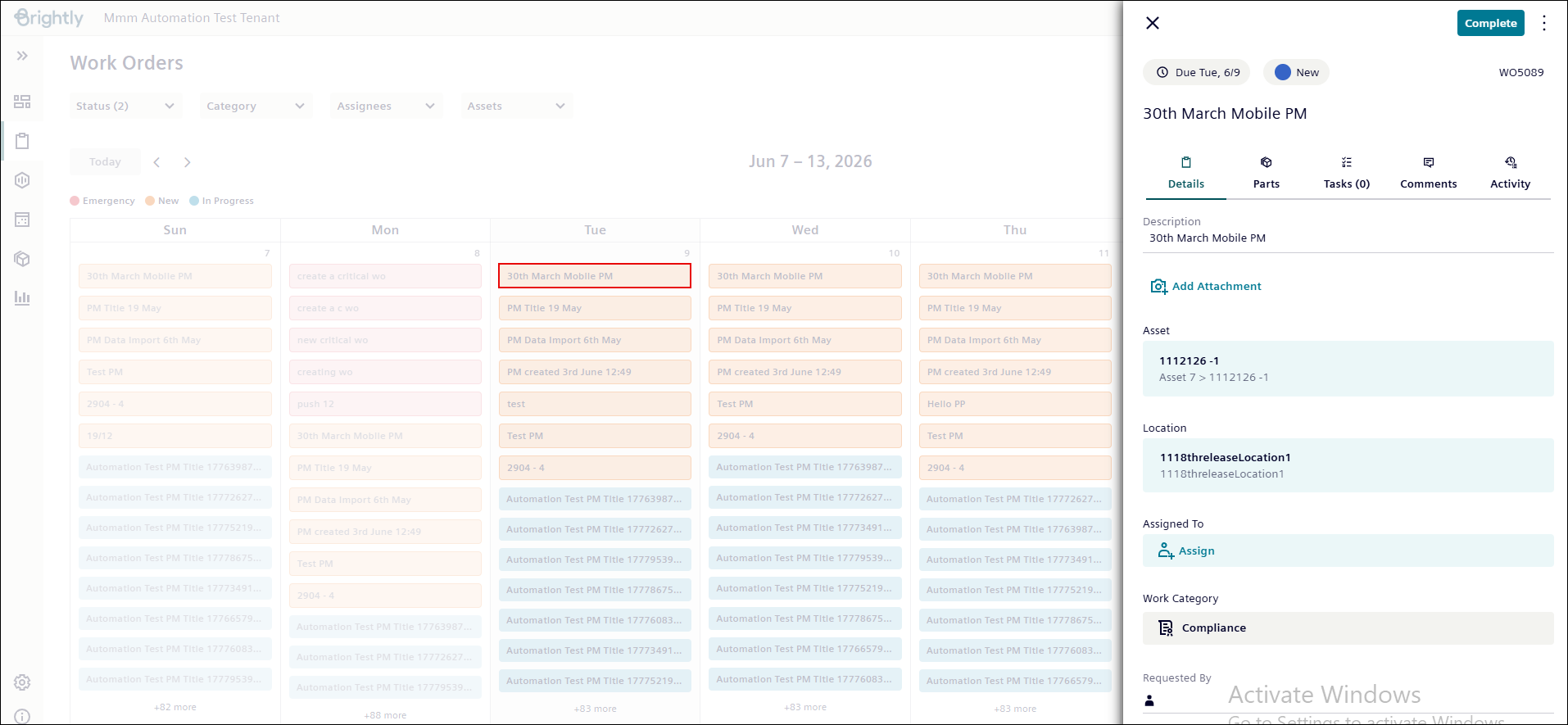
Select a work order to open a work order panel, where you can view and update information as required.
-
To change the due date, drag and drop work order to a future date.
NOTE Work Orders cannot be dragged and dropped to a past date.
Filtering Work Orders

Status
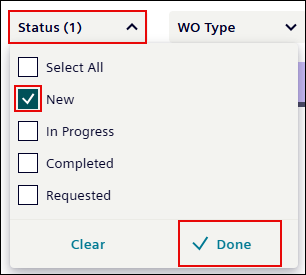
The Status drop-down filter allows you to filter work orders by their status:
-
New: Displays work orders that have been created by Administrators, Technicians, or Requesters.
-
In Progress: Displays work orders that have been assigned and are currently being worked on.
-
Completed: Displays work orders that have been marked as complete.
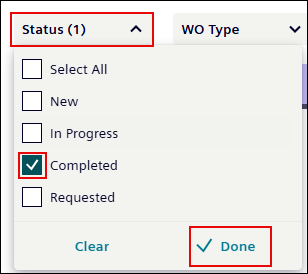
NOTE You can filter the Completed section further by This Month, This Week, or Today. This filter applies only within the completed section and is not part of the main page.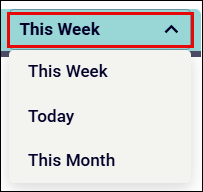
-
Requested: This section is intended for Guest Requests.
NOTE
*The Guest Request feature is not currently available in MMM.
*The Requested section is reserved for guest-submitted work orders and will be supported in a future release.
WO Type
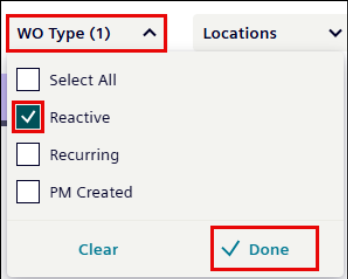
The WO Type drop-down filter allows you to filter work orders by the following types:
-
Reactive: Reactive work orders are Created for unexpected issues requiring immediate attention.
-
Recurring: Recurring work orders are Scheduled at regular intervals for routine maintenance.
-
PM Created: PM Created work orders are Generated from a Preventive Maintenance (PM) schedule.
To filter by WO Type:
-
Click the WO Type drop-down list.
-
Select WO Type such as “Reactive.”
-
Click Done.
Locations
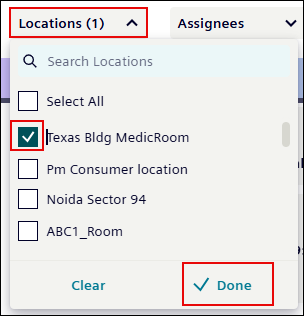
The Locations drop-down filter allows you to filter the work orders based on their reported location.
-
Click Locations drop-down list.
-
Select location such as “Texas Bldg MedicRoom 1”.
-
Click Done.
Assignees
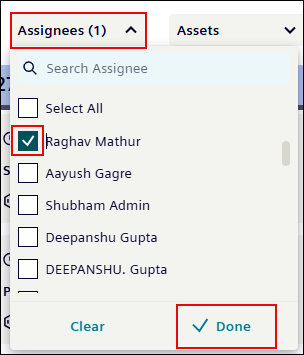
The Assignee drop-down filter allows you to filter work order by the name of the assignee.
-
Click the Assignees drop-down list and select the Assignee’s name.
NOTE Multiple assignees can be selected from the Assignees drop-down list.
-
Click Done.
Assets
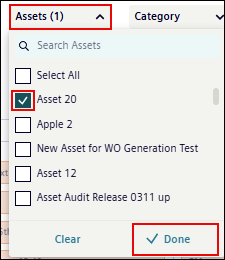
The Assets drop-down filter allows you to filter work orders based on the assets.
-
Click the Assets drop-down list and select the asset name.
NOTE You can select multiple Assets from the drop-down list.
-
Click Done.
Category
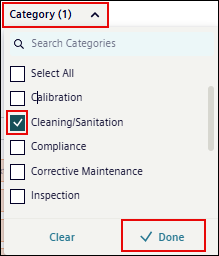
The Category drop-down filter allows you to filter work orders by the work order category.
-
Click the Category drop-down list and select the category name.
NOTE You can select multiple categories from the drop-down list.
-
Click Done.